|
Create a User Interface Using HTML
|
-
<html>
-
<head>
-
<title>
-
Find Employee Information
-
</title>
-
</head>
-
<body>
-
<form method="get" action="http://localhost:8080/emp_details">
-
<h2 align=center>Find Employee Information<center></h2>
-
<table>
-
<tr>
-
<th>Enter Employee Id>/th>
-
<td><input type=text name="id"></td>
-
</tr>
-
</table>
-
<input type=submit value=Submit>
-
</form>
-
</body>
-
</html>
Download Servlet.html
|
|
Servlet Coding
|
import java.io.*;
import java.sql.*;
import javax.servlet.*;
import javax.servlet.http.*;
public class EmployeeDetails extends HttpServlet{
static int i;
Connection con;
PrintWriter out;
ResultSet rs;
public void init(){
i=0;
con=null;
out=null;
rs=null;
}
public void doGet(HttpServletRequest request, HttpServletResponse response) throws ServletException, IOException{
i++;
out=response.getWriter();
out.println("<b>You are user number " + i + "to visit this site</b><br><br>");
try{
Class.forName("sun.jdbc.odbc.JdbcOdbcDriver");
con=DriverManager.getConnection("jdbc:odbc:EmployeesDB","sa","password");
PreparedStatement pstmt=null;
String query=null;
query="select emp_fname,address,age,desig from Employee_Master where id=?";
pstmt=con.prepareStatement(query);
pstmt.setInt(1,Integer.parseInt(request.getParameter("id")));
rs=pstmt.executeQuery();
out.println("<b><center>Employee Details</center></b><br><br>");
ResultSetMetaData rsmd=rs.getMetaData();
int colcount=rsmd.getColumnCount();
out.println("<table align=center border=1 cellpadding=2>");
out.println("<tr>");
for(int i=1; i<=colcount; i++){
out.println("<th>" + rsmd.getColumnLabel(i) + "</th>");
}
out.println("<tr>");
while(rs.next()){
out.println("<tr>");
out.println("<td>" + rs.getString("emp_fname") + "</td>");
out.println("<td>" + rs.getString("address") + "</td>");
out.println("<td>" + rs.getString("age") + "</td>");
out.println("<td>" + rs.getString("desig") + "</td>");
out.println("</tr>");
}
out.println("</table>");
out.println("</body>");
}
catch(Exception e){
out.println(e.toString());
}
}
public void destroy(){
try{
i=0;
con.close();
out.close();
rs.close();
}
catch(SQLException se){
out.println(se.toString());
}
}
}
Download EmployeeDetails.java
|
|
Package the Servlet into a J2EE Application
|
-
-
Write a html file and name it as “Employee.html”
-
Write a java program and name it as “EmployeeDetails.java”
-
Set the path in the “command prompt”
-
set path=.;D:\progra~1\java\j2sdk1.5.0\bin;D:\Sun\AppServer\bin;
-
Set classpath=.;D:\progra~1\java\j2sdk1.5.0\lib;D:\Sun\AppServer\lib\j2ee.jar;
-
Now compile the “EmployeeDetails.java”
-
After the java programs are compiled successfully, you can close the command prompt.
-
Open the SQL Query Analyzer. In that
-
Create table Employee_Master(emp_fname varchar(20), address varchar(20), age int, desig varchar(20), id varchar(20));
-
Insert into Employee_Master values(‘Franklin’, ‘Pooteti’, 25, ‘MCA’, ‘1’);
-
Close the SQL Query Analyzer
-
Goto Control Panel (Start -> Settings ->Control Pannel)
-
Click Administrative Tools (in XP, click Performance and Maintenance) and then click Data Sources (ODBC)
-
Now
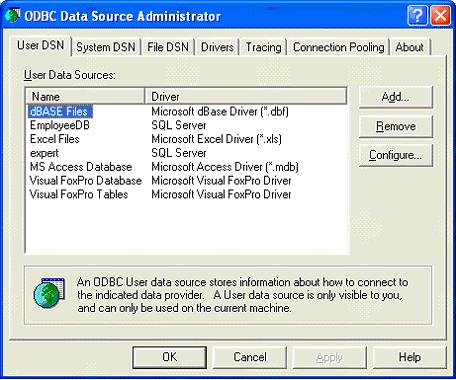
Click the "Add" button
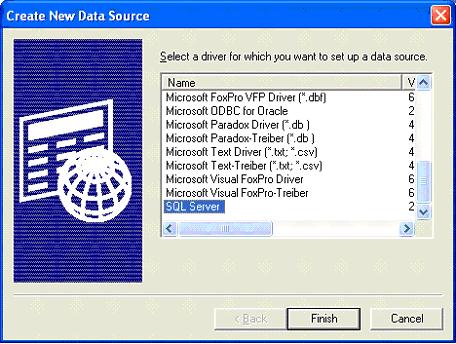
Select “SQL Server” and click Finish
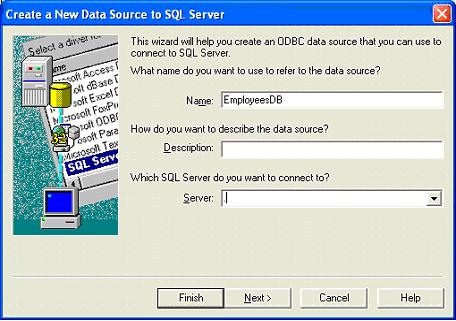
Write “EmployeesDB” in the Name textbox. Then in the Server textbox write “.”

Now Select the option “With SQL Server authentication using a login ID and password entered by the user”. Then select “Connect to SQL Server to obtain default settings for the additional configuration options”
Then in the Login ID write “sa” and then press Next button

Select the Change the default database to and give your database name (Optional)
Next click the Next button
Click the Finish button
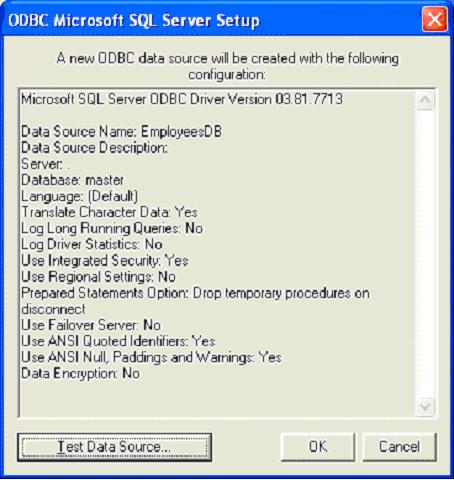
Click Text Data Source button

Press OK button

Press OK button

Press OK button
-
Now goto Start -> Programs -> Sun Microsystems ->Application Server PE -> Start Default Server (wait till it start and then press any key)
|
|
Click Next To Continue...
|
|
|
|

|
|
About Author
|
Author Name : Mr. R.Franklin Bourgia Singh
Country : INDIA
Working In : Aryans Infoway (P) Ltd.
Email : admin@completetutorials.co.cc
Author Home Page : http://www.completetutorials.googlepages.com
|
|
Reach me!
|
|
|
Send your feed-back and query to admin@completetutorials.co.cc
©2008 Bourgia
|


 If you like this article and/or code, make a small donation to my